
Clients
Keep your clients' contact details, addresses, tax identifiers, and e-invoice settings together in one place using Cakedesk's client management features.
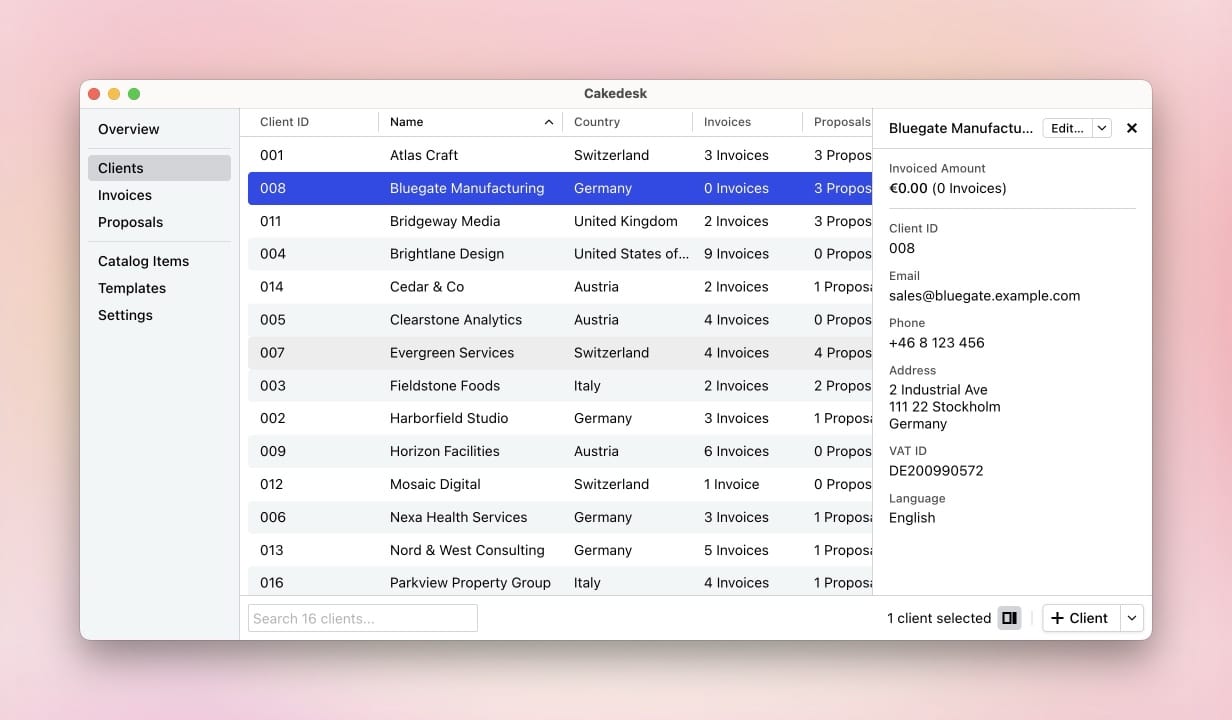
#Importing clients from CSV
Cakedesk can import clients from a CSV file. This is useful when you are moving from another invoicing app or when you keep client data in a spreadsheet.
This feature is available in Cakedesk version 1.35.0 and later.
#Starting the import
There are two ways to start the CSV import from the clients overview:
- Drag and drop a
.csvfile into the clients overview. - Click the arrow next to "New Client" in the bottom right and choose "Import from CSV".

#Reviewing the data before importing
After selecting or dropping the CSV file, Cakedesk opens the import screen and tries to match your CSV columns to client fields automatically.
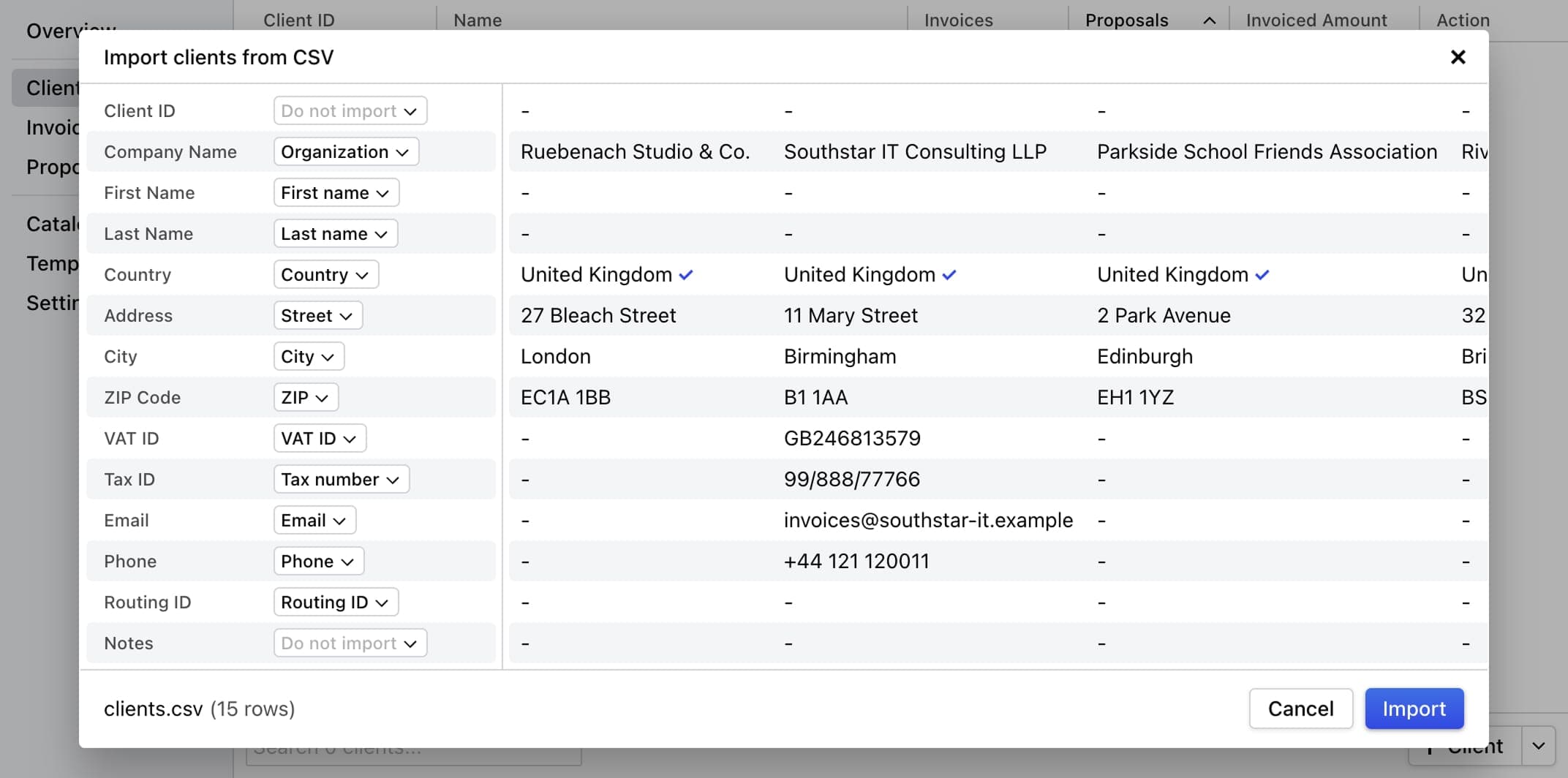
Review the suggested column mapping, then click "Import".
#Good to know
- The first row of the CSV file should contain column headers. Each following row should contain one client.
- Cakedesk supports common CSV exports, including UTF-8 files and many Windows-1252 encoded files.
- You can change every field manually, or set it to "Do not import" if that column should be ignored.
- The preview shows up to 50 rows. Country values are checked in the preview; unknown country values are imported without a country.
- Leave the client ID empty if Cakedesk should generate the next client ID automatically.
- If a client ID appears twice in the CSV file or already exists in Cakedesk, the whole import is canceled and no new clients are created.
- If a routing ID is imported, Cakedesk enables XRechnung for that client.
- If a client row has first & last name set but no company name, Cakedesk imports the client as a person. The same applies for clients whose company name matches their first and last name. In all other cases, Cakedesk imports the client as a company.
Cakedesk can import client IDs, company names, first and last names, addresses, VAT IDs, tax IDs, email addresses, phone numbers, routing IDs, and notes.
#Exporting clients as CSV
Starting with Cakedesk version 1.37.0, you can export all clients or a
selection of clients as a CSV file.
Open the Clients overview and click the arrow next to "Client" in the bottom-right corner. There you'll find options to export all or only selected clients as a CSV file.
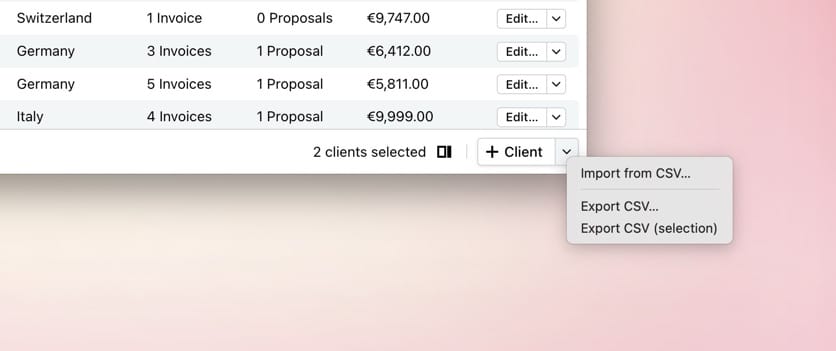
The exported file contains one row per client, including contact details, address, tax identifiers, and e-invoice settings.