
AI Agents
You can connect AI agents like Claude, Codex, Cursor and Gemini CLI to Cakedesk via MCP (Model Context Protocol). Your agent can then create invoices and proposals, manage clients and answer questions about your business, right from your conversation.
This feature is available in Cakedesk version 1.40.0 and later.
#What your agent can do
Your agent always works in the space that's currently open in Cakedesk. There, it can:
- Search, add, edit and delete clients
- Create, edit and delete invoices and credit notes, also based on a proposal
- Create, edit and delete proposals
- Add, edit and delete catalog items for your products and services
- Add, edit and delete units like hours or days
- Change settings, such as your company details, currency, VAT defaults, languages, number formats, payment terms, text and email templates and e-invoices
- Choose templates for invoices and proposals, as the default or for individual documents
- Answer questions about your business, such as which invoices are still unpaid or which invoices you sent a client in a certain period
#Setup
#1. Enabling the MCP server
In Cakedesk, go to Settings > Advanced and enable the MCP server.
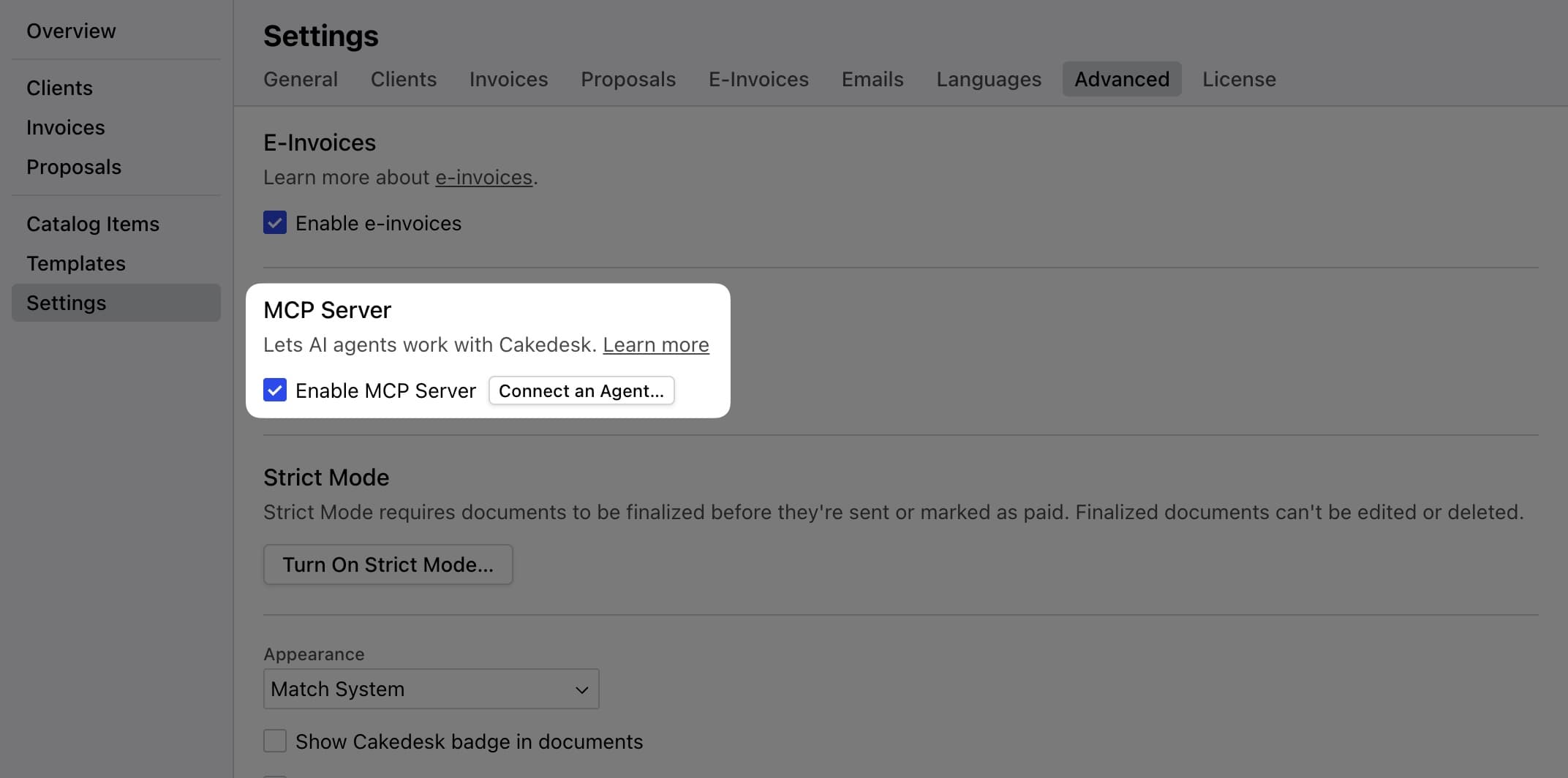
Cakedesk needs to stay open on the same computer as your agent while you work with it.
#2. Connecting your agent
Next, add Cakedesk as an MCP server in your agent. The server runs locally at
http://localhost:5678/mcp. Choose your agent to see its setup steps:
#Checking your agent's changes
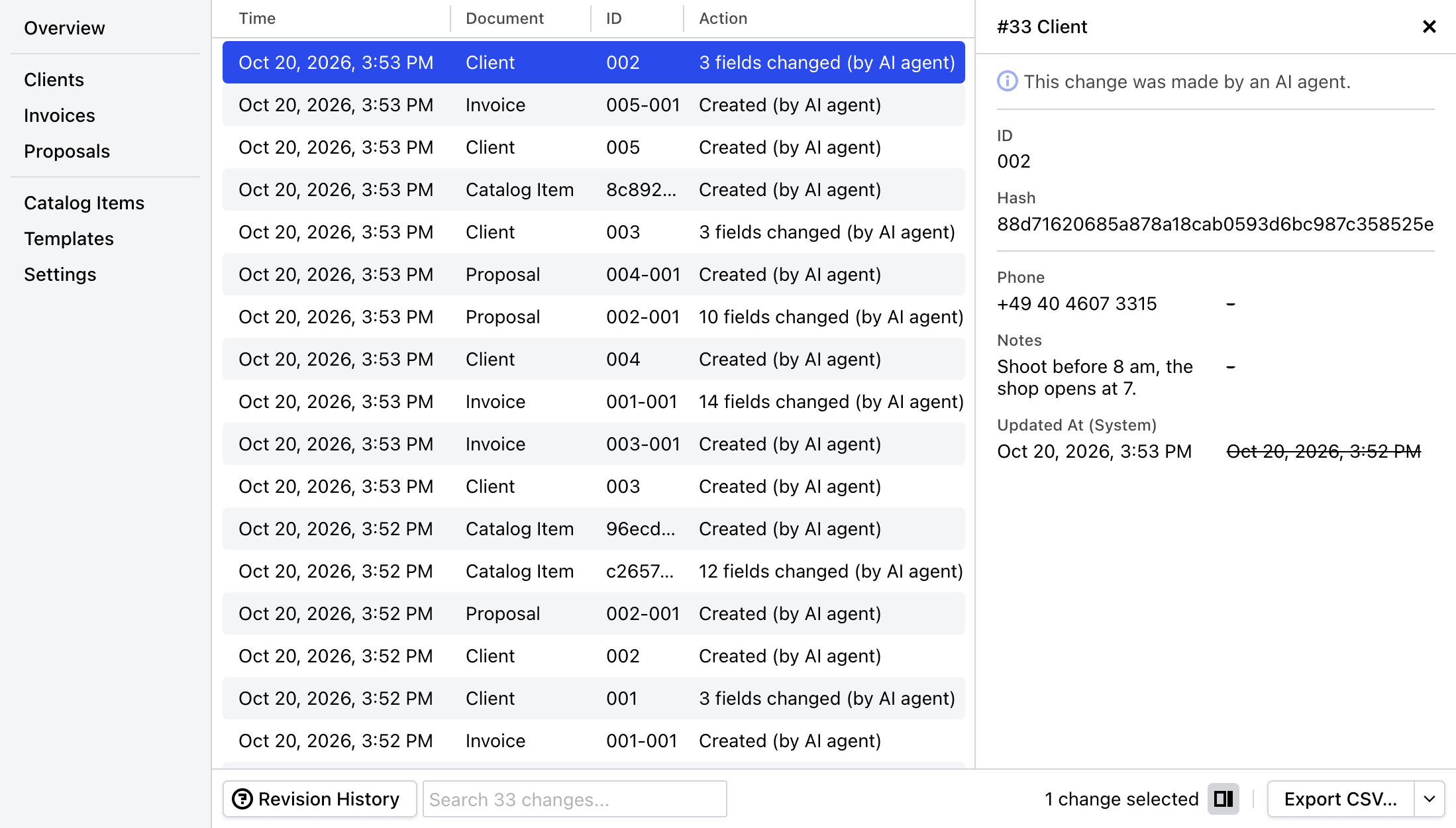
Cakedesk records every change your agent makes in the Revision History and marks it "(by AI agent)". There you can see what your agent has created, changed or deleted in Cakedesk and when.
#What your agent can't do yet
There are a few things you still need to do by hand in Cakedesk. Your agent can't yet:
- Finalize invoices in Strict Mode. Invoices your agent creates in Strict Mode stay drafts until you finalize them.
- Send invoices and proposals by email
- Mark invoices as paid
- Cancel invoices
- Create or edit templates
- Export PDFs or e-invoice files
- Turn Strict Mode on or off
- Switch to another space